What Do the Monitored, Confidential, and Incognito Status Mean in the Desktop App?

When using the Cloudica™ desktop app, you have complete control over how your activity is tracked. You can switch between three distinct monitoring statuses directly from your application panel depending on the type of work you are doing. The Three Status Options
  • Monitored (Checkmark Icon) Full tracking mode. Records your hours, apps, websites, screenshots, and clear keystrokes. Best for your standard daily work tasks. 
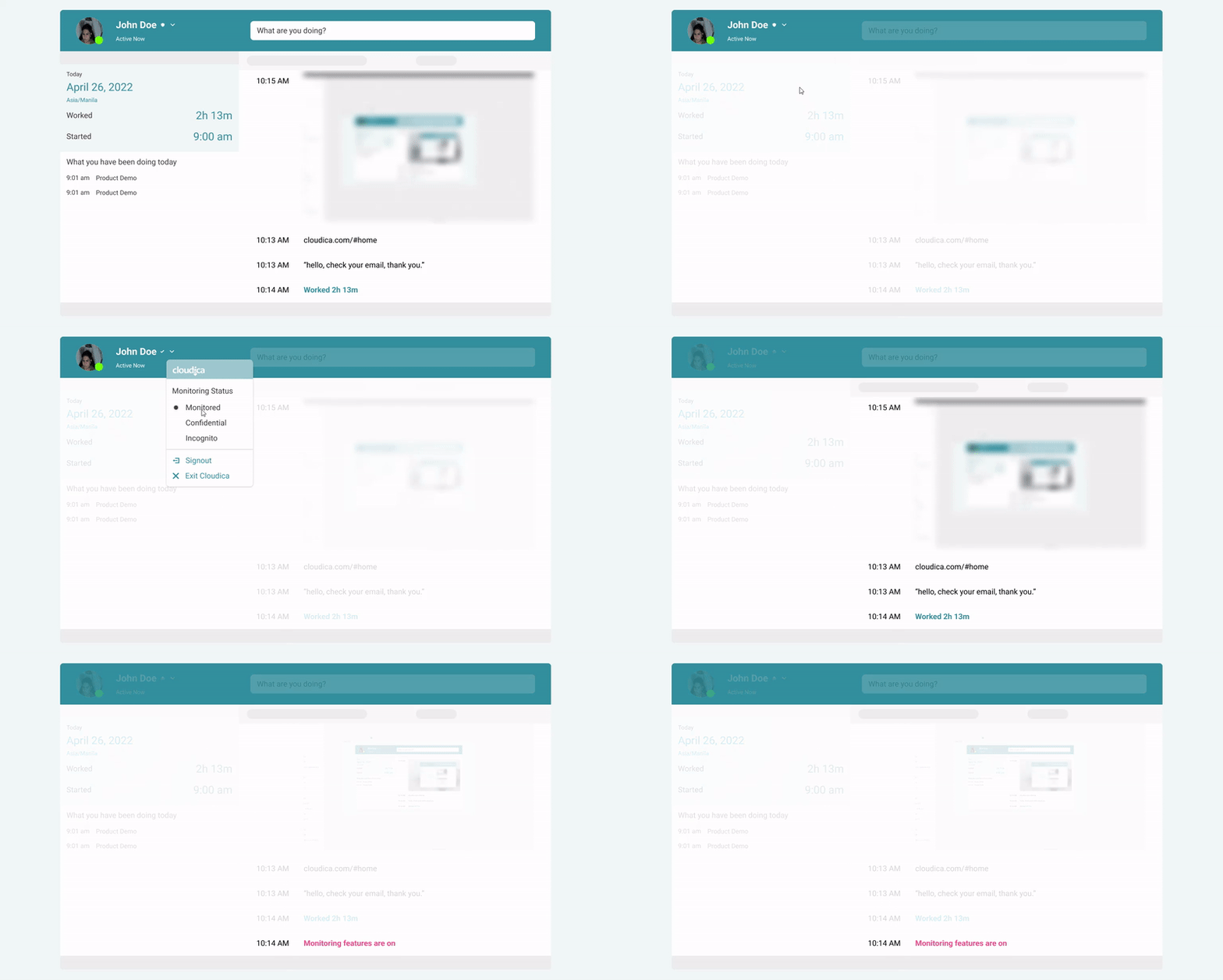
  • Confidential (Shield Icon) Secure tracking mode. Records your hours and active apps, but blurs screenshots and masks keystrokes. Best when you are handling sensitive info like passwords or client data. 
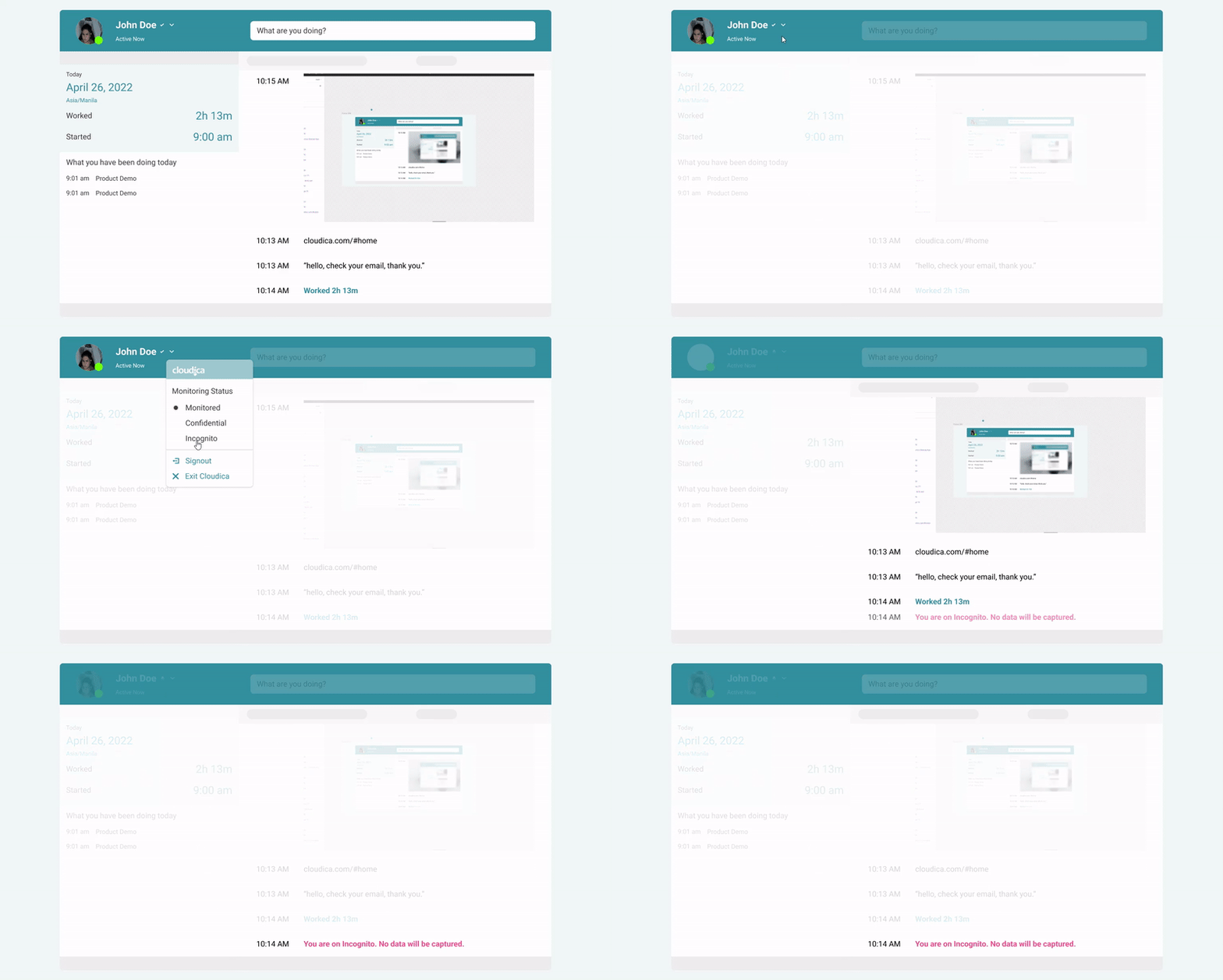
  • Incognito (Hat & Shades Icon) Pauses all tracking. No hours, screenshots, or inputs are recorded. Best for quick personal breaks, lunch, or non-work tasks when you don't want to log out completely. 
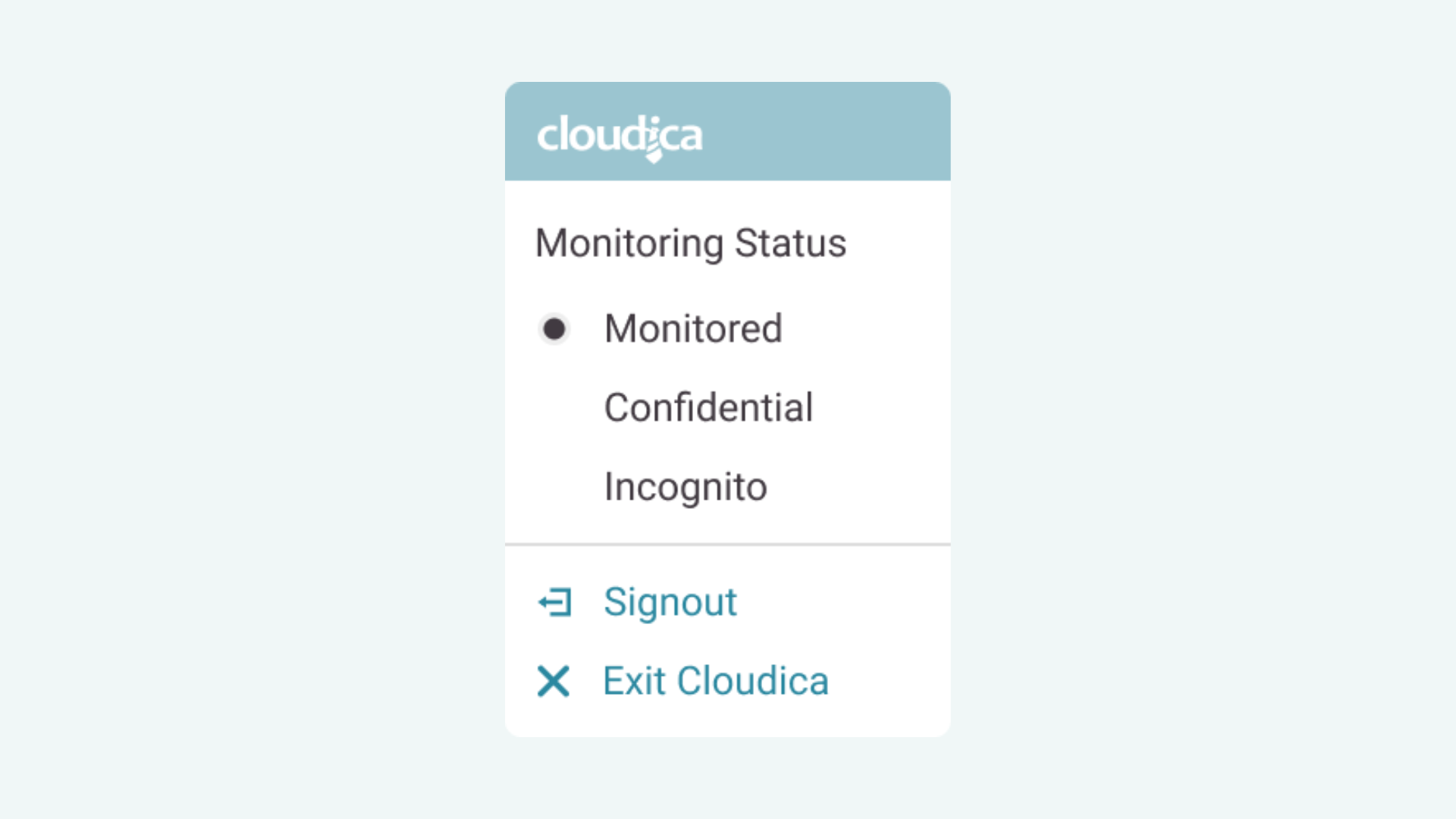
62b0550061a0amonitoring-status.png 1. Monitored (Default)  This is your baseline status and is automatically active when you log in. It ensures your work hours are fully captured and your productivity is accurately logged. Every application you use, website you visit, and screenshot captured will be recorded clearly for your team metrics.  62b0552807097switch-to-monitored-800px.gif 2. Confidential  We know that remote work sometimes involves handling sensitive information. When you switch to Confidential mode, Cloudica™ adds a heavy layer of privacy: your screenshots are automatically blurred and your keystroke text is completely masked. Your manager can still see that you are actively working, but your private data stays secure.  62b05593c0e87switch-to-confidential-800px.gif 3. Incognito  Think of this as a "Do Not Track" pause button. Instead of logging completely out of the app when you step away for a quick break, just flip to Incognito mode. The app will keep you logged in, but it completely stops recording your time, screen, apps, and keystrokes until you switch it back.  62b055c625313switch-to-incognito-800px.gif Note: For lunch or extended breaks, you can also choose to sign out or exit the desktop app entirely. For Managers: You can easily see the live status of your entire team at any time by viewing the Managed Users List on your web dashboard.  Need help switching statuses? 
Copyright © 2025 Cloudica LLC