How to Link Tasks to Your Daily Report
- Click your avatar in the upper-right corner of the web dashboard.
- Click My Daily Reports on the User Menu.
- Click the plus icon (+) in the upper-right corner of the Daily Reports module to create a new report.
- Select your preferred method in creating your report. You can refer to our guide on How to Create Daily Reports for the different methods.
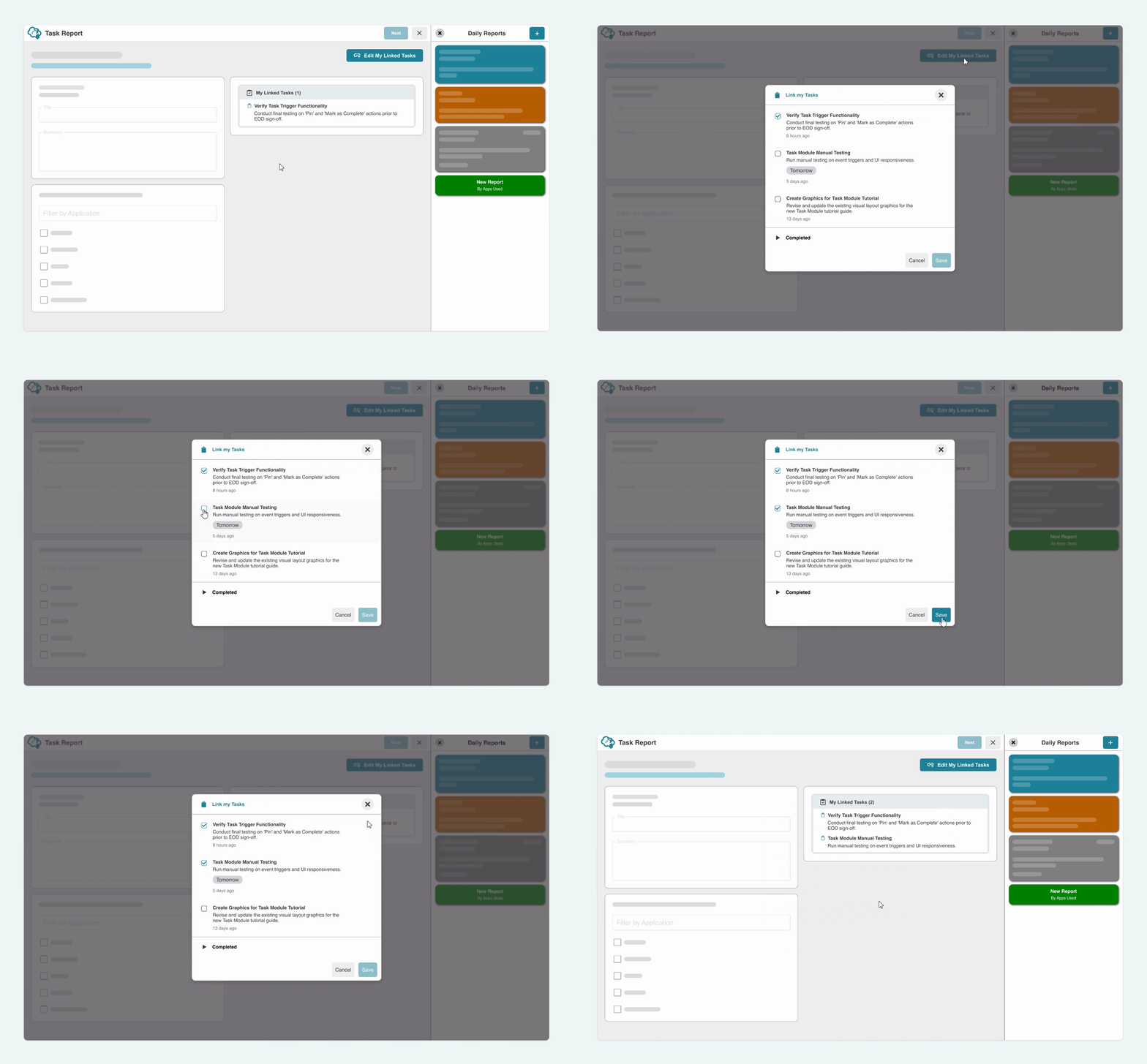
- Once the Report Form opens, click the Link My Tasks button.
- A pop-up modal with your existing Active Tasks will appear. Select the tasks you want to associate with the report by clicking the checkbox next to each item, and click Save.
- You can select multiple related tasks before saving and closing the pop-up modal. Your selected entries will display on the right side of the Report Form.

- Click the Edit My Linked Tasks button located in the upper-right corner of the Report Form.
- When the task list modal pops up, check or uncheck items to add or remove them from your current Daily Report.
- Click Save to apply your changes.

- Daily Reports Drawer (Dashboard View): Your Linked Tasks will reflect clearly on the lower section of your Task Report card summary on the right panel of the module.

- Daily Reports Player (Timeline Review): When reviewing a report timeline inside the Daily Reports Player, click the clipboard icon in the top-right corner to open a dedicated Linked Tasks modal.

- Manager Email Notifications (External Proof of Work): Your manager will automatically receive an email update when you submit your Daily Report. Your Linked Tasks are listed right in the center of the email body.
