Managing Your Tasks through the Task Module
- Personal Access: You can create, edit, prioritize, and delete tasks within your own workspace to streamline your daily routine.
- Leadership Visibility: To maintain alignment across the department, supervisors or managers within your organization chart can view your progress, update task statuses, or make modifications to coordinate with overall team goals.
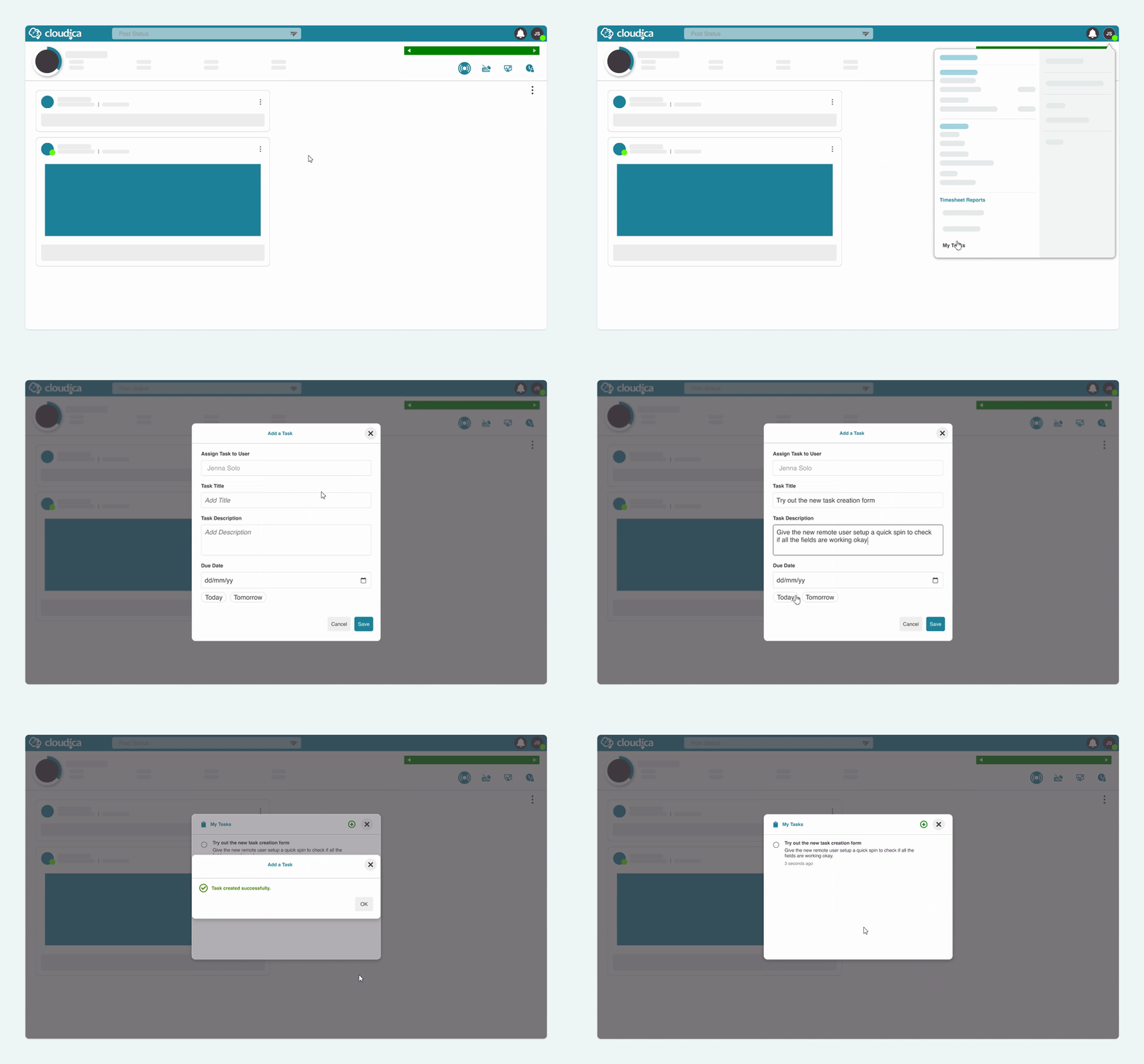
- Click your avatar in the upper-right corner of the web dashboard.
- Click My Tasks on the User Menu to launch the Tasks modal pop-up.
- Click the green plus icon (+) on the right side of the header to create a new task entry.
- On the task details view, enter the Task Title, write a Task Description, and select a Due Date (if applicable).
- Deadlines can be assigned immediately for Today or Tomorrow by using the quick shortcut buttons. Alternatively, select the calendar icon to specify a future completion date. Ongoing, continuous, or recurring items can be saved without setting a due date.
- Click Save to publish.
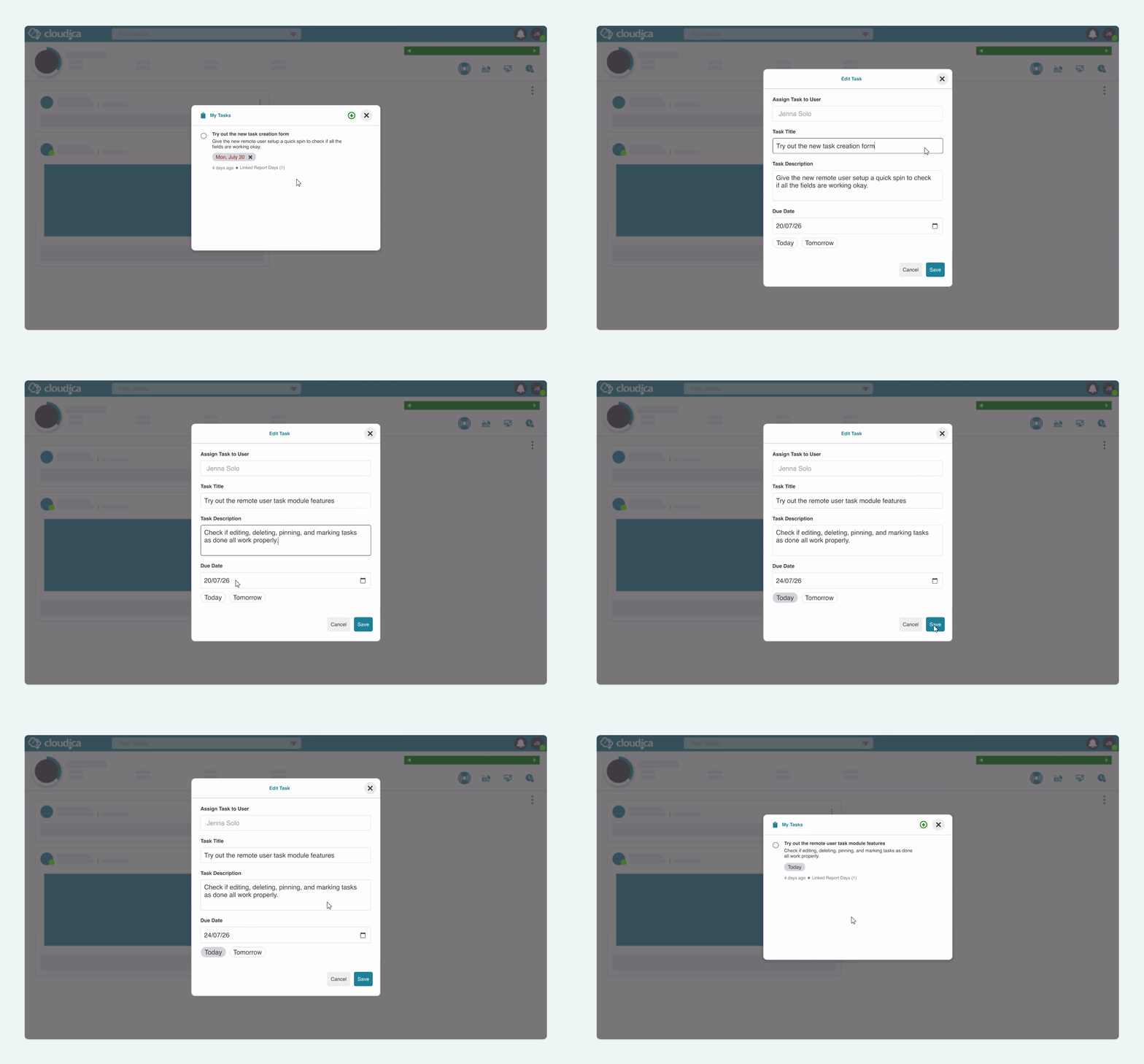
- While on the task modal, hover over the specific task you wish to modify.
- Click the Edit (pencil) icon on the right side.
- Update the title, description, or due date as needed, then click Save.
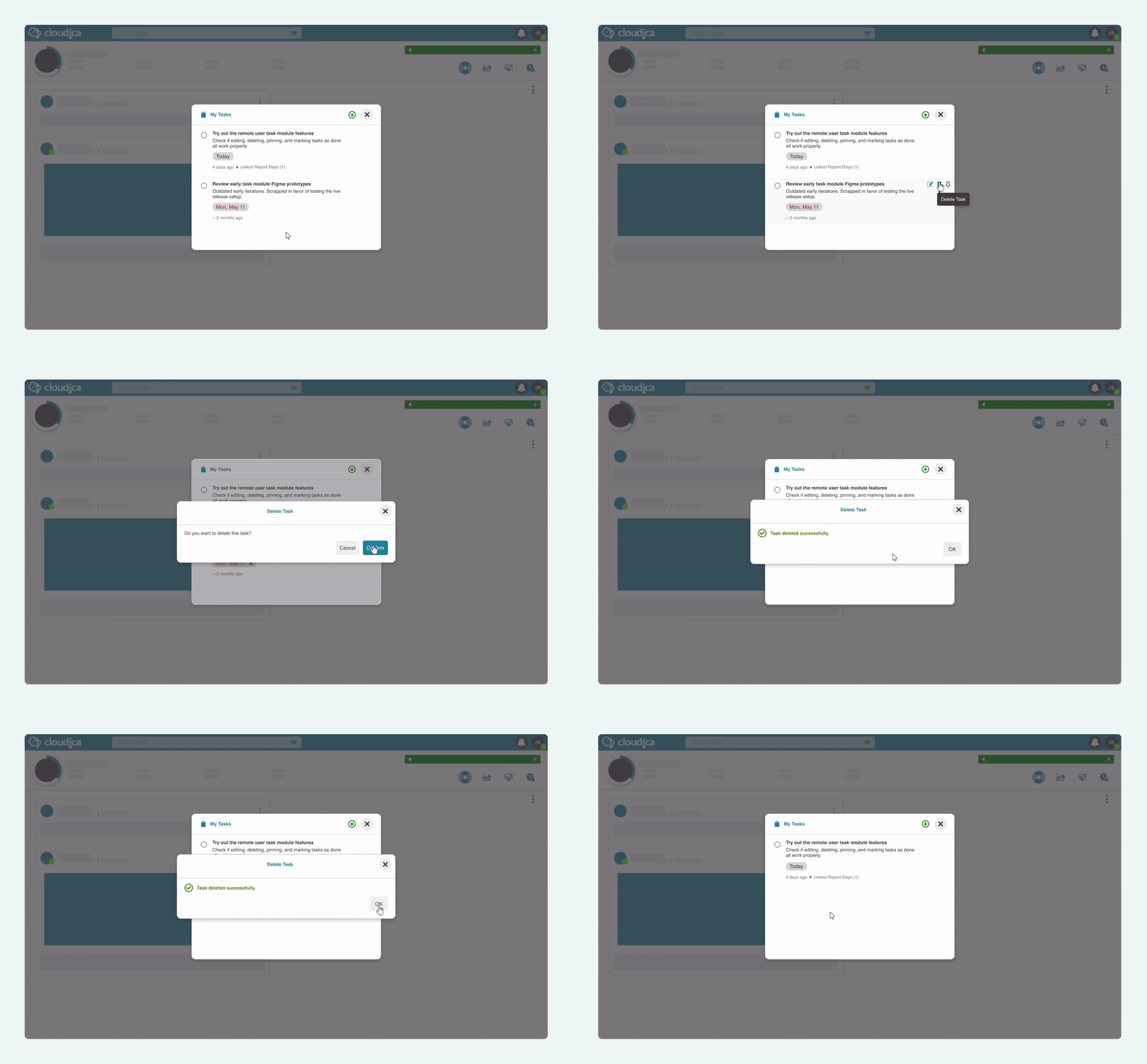
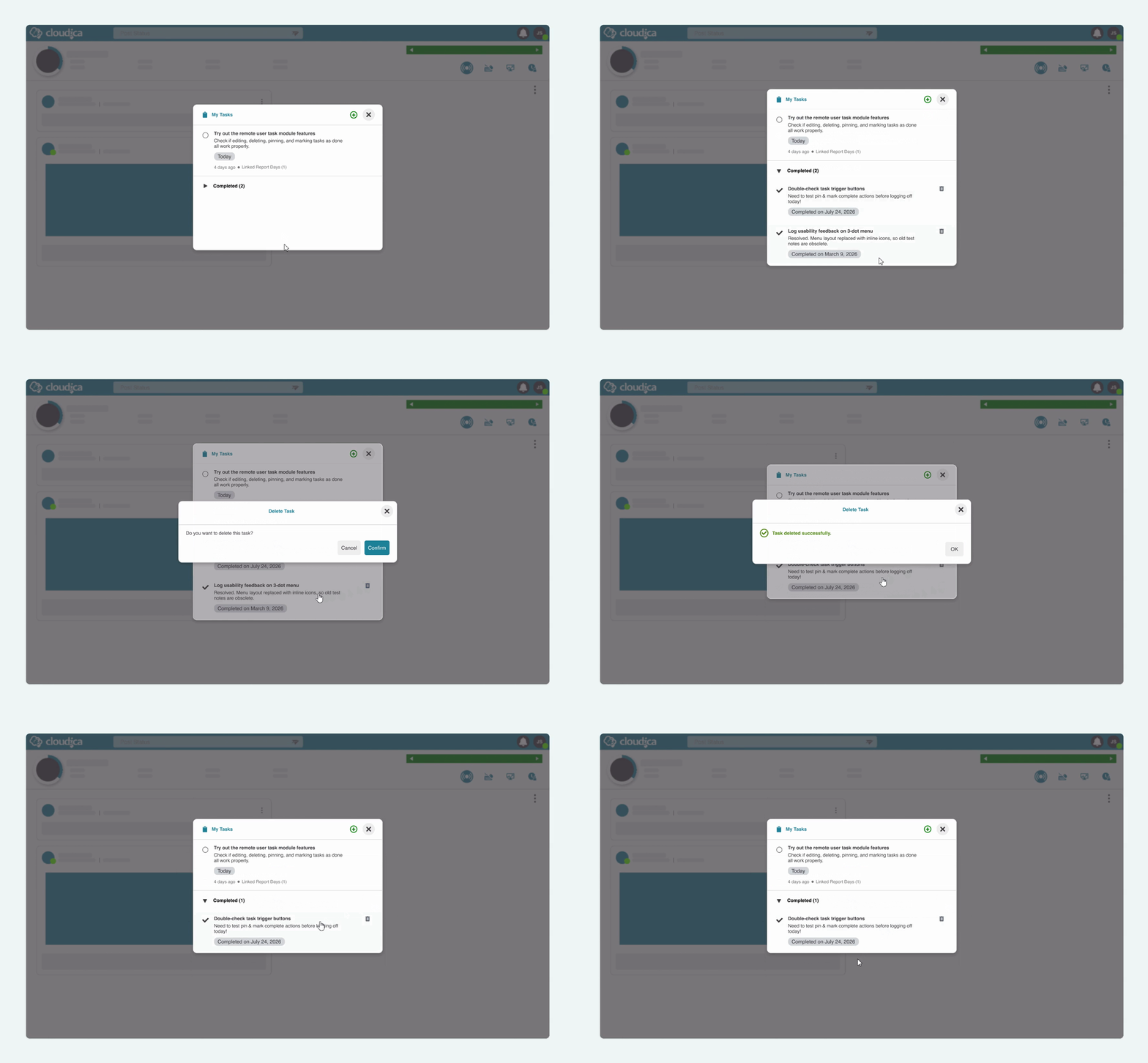
- While on the task modal, hover over the entry you wish to remove.
- Click the Delete (trash can) icon on the right side.
- Click Confirm on the safety pop-up to permanently delete the task, or click Cancel to abort.
- While on the task modal, hover over the task you want to prioritize. Click the Pin icon on the right side.
- If another task is already pinned, click Confirm on the pop-up prompt to switch the pin to your new choice.

- While on the task modal, hover over the task you want to finish.
- Click the blank circle on the far left side.
- Clicking the circle places a checkmark inside it, instantly moving the task out of your Active List and down into the Completed section.
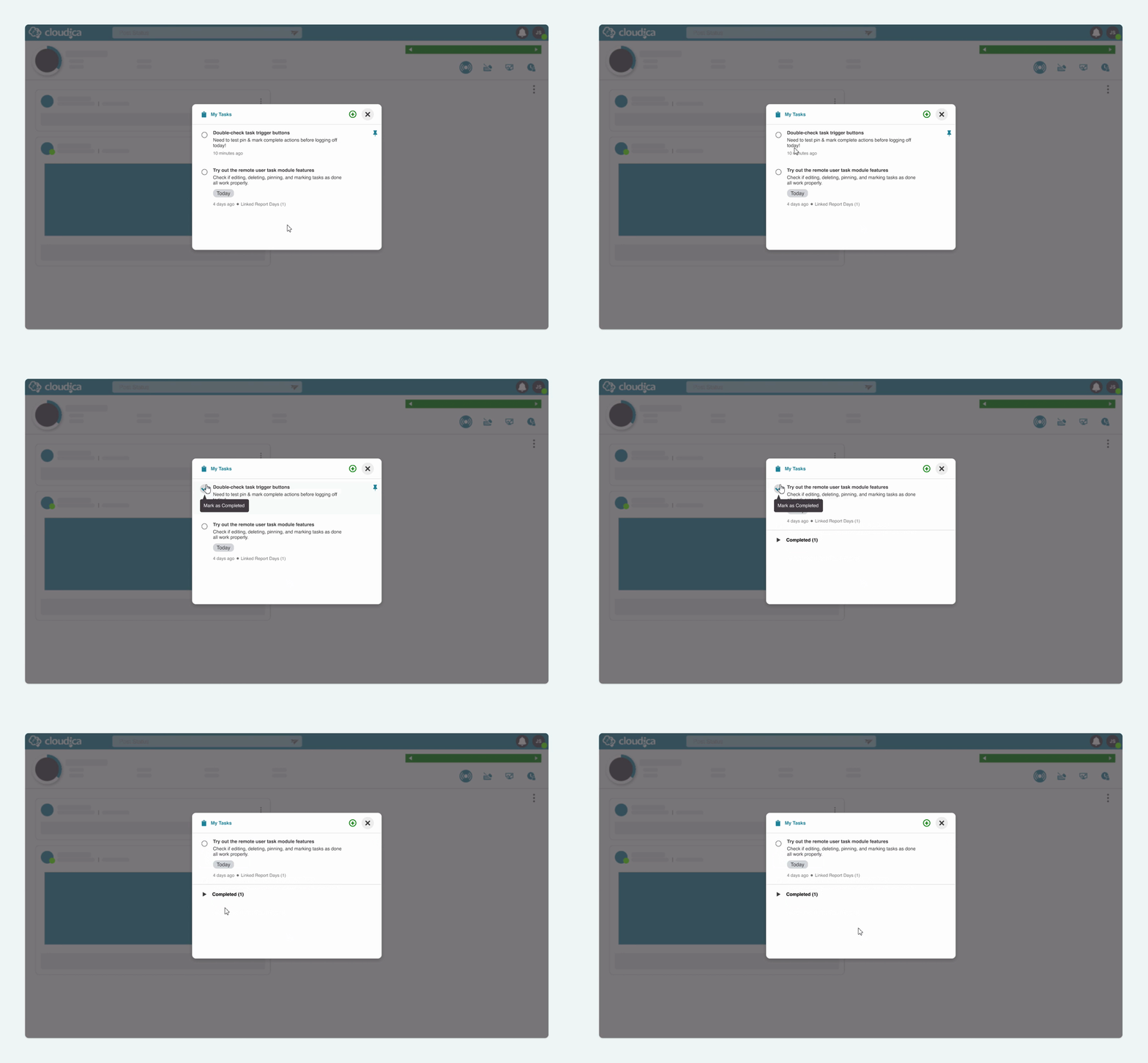
- While on the Task modal, scroll down to the Completed section at the bottom of the pop-up.
- Click the right-facing chevron arrow (toggle icon) next to the header text to expand the hidden view and display your Completed tasks.
- To clear a Completed Task from your personal record, locate the item and click the Delete icon.
- Expand the Completed section and hover over the task you want to reactivate.
- Click the checkmark circle on the left side of the task to remove the checkmark.
- The task will be removed from the Completed section and relocated back to the Active List, where you can edit, pin, or manage it normally.
