How to Request Idle Log Deletion
The Cloudica™ Desktop App automatically records idle time whenever computer activity is not detected. If you were working offline or performing tasks away from the keyboard, you can view these logs and request their deletion to ensure your productivity data is accurate.
How to Delete an Idle Log Entry
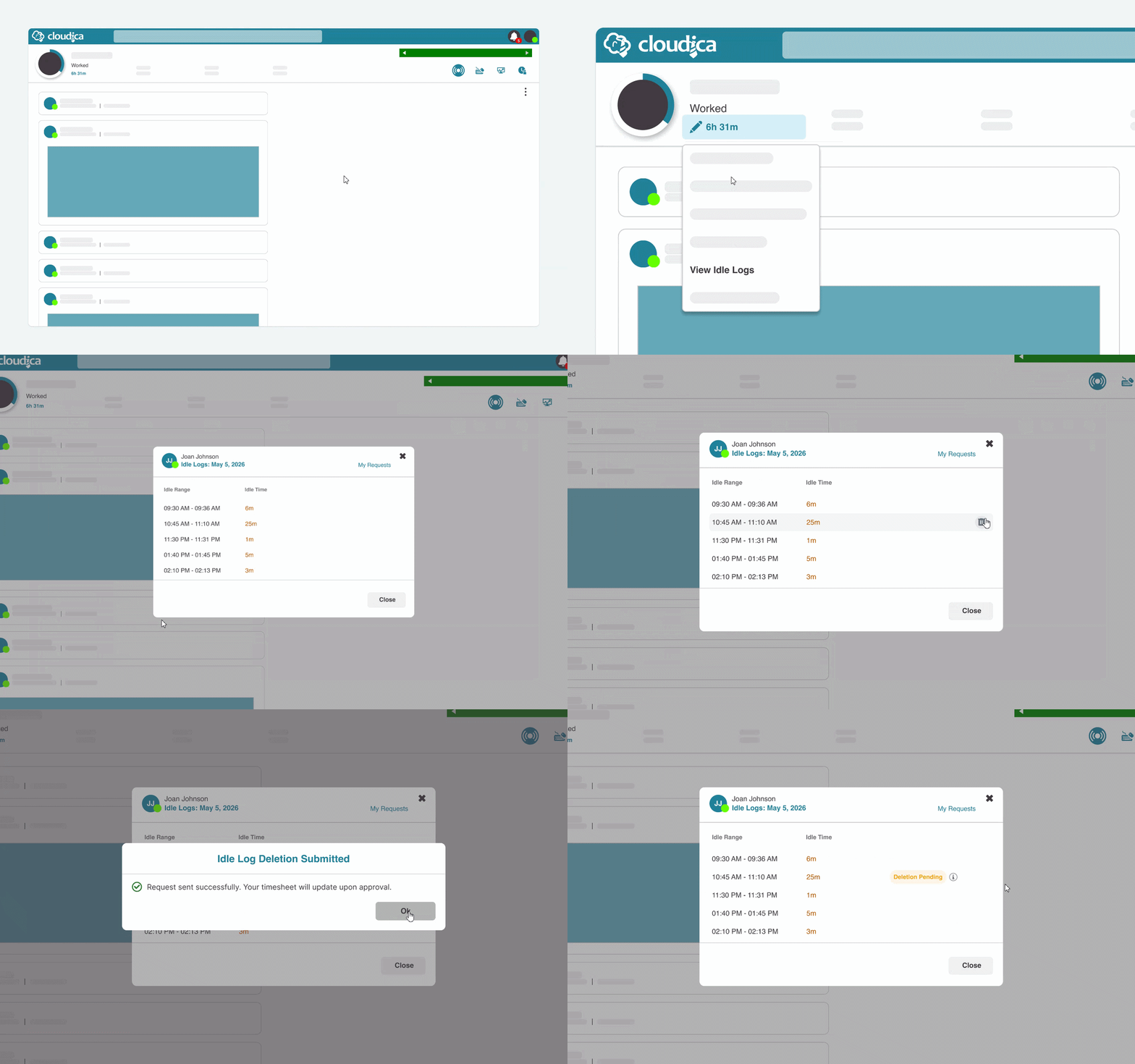
1. Log In: Access your Cloudica™ dashboard.
2. Open Timesheet: Click Worked Hours on the left side of the dashboard.
3. View Idle Logs: Select the View Idle Logs option from the menu.
4. Request Deletion: Hover over the specific idle entry you wish to remove and click the Trash Bin icon.
Requesting for a Previous Date: If you need to delete an Idle log for a past date, first use the Date Picker at the top of your dashboard to select the correct date. Once the dashboard updates, proceed with the steps above.
Understanding the Activity Check (Approval Logic)
When you submit a deletion request, the system performs an automatic Activity Check based on computer interactions (e.g., app switching or keystrokes) recorded during that idle period:
- Automatic Approval: If the system detects more than one activity during the idle log period, the request is automatically approved.
- Manual Review: If there is zero or only one activity recorded, the request must be manually reviewed and approved or declined by a Manager or Account Owner.
Once a deletion request is approved, the system will automatically update your Total Idle Time for that day. You will receive a dashboard notification for all manual review outcomes.
How to Cancel a Deletion Request
If a deletion request is still Pending, you can cancel it by following these steps:
- Go to Worked Hours > View Idle Logs.
- Hover over the entry marked Deletion Pending.
- Click the Arrow (Undo) icon to cancel the request.
Managing Your Requests
How to View Your History
- Via User Menu: Click the User Menu, select My Addendums, and click the My Idle Deletion Requests tab.
- Via Timesheet Menu: Click Worked Hours > View Idle Logs > My Requests.
The Idle Deletion Request Table
This table tracks your requests with the following details: Requested By, Idle Range, Idle Total, and Status.
- Delete/Cancel: Remove "Pending" requests using the delete button.
- Filter: Use the Filter button on the right to sort requests by status.
Request Status Types
- For Approval
The request is awaiting review by a Manager or Owner.
- Approved
The request was accepted; Total Idle Time has been updated.
- Declined
The request was rejected.
Why Manage Idle Logs?
Cleaning up your idle logs ensures that your performance metrics accurately reflect your focus and dedication. By removing periods where you were working offline, you provide your manager with a clear and transparent view of your actual contributions.
Copyright © 2025 Cloudica LLC