How to Request an Addendum
- Provide a Reason for the request (Required).
- Attach supporting evidence, such as an image, video, or PDF (Optional).
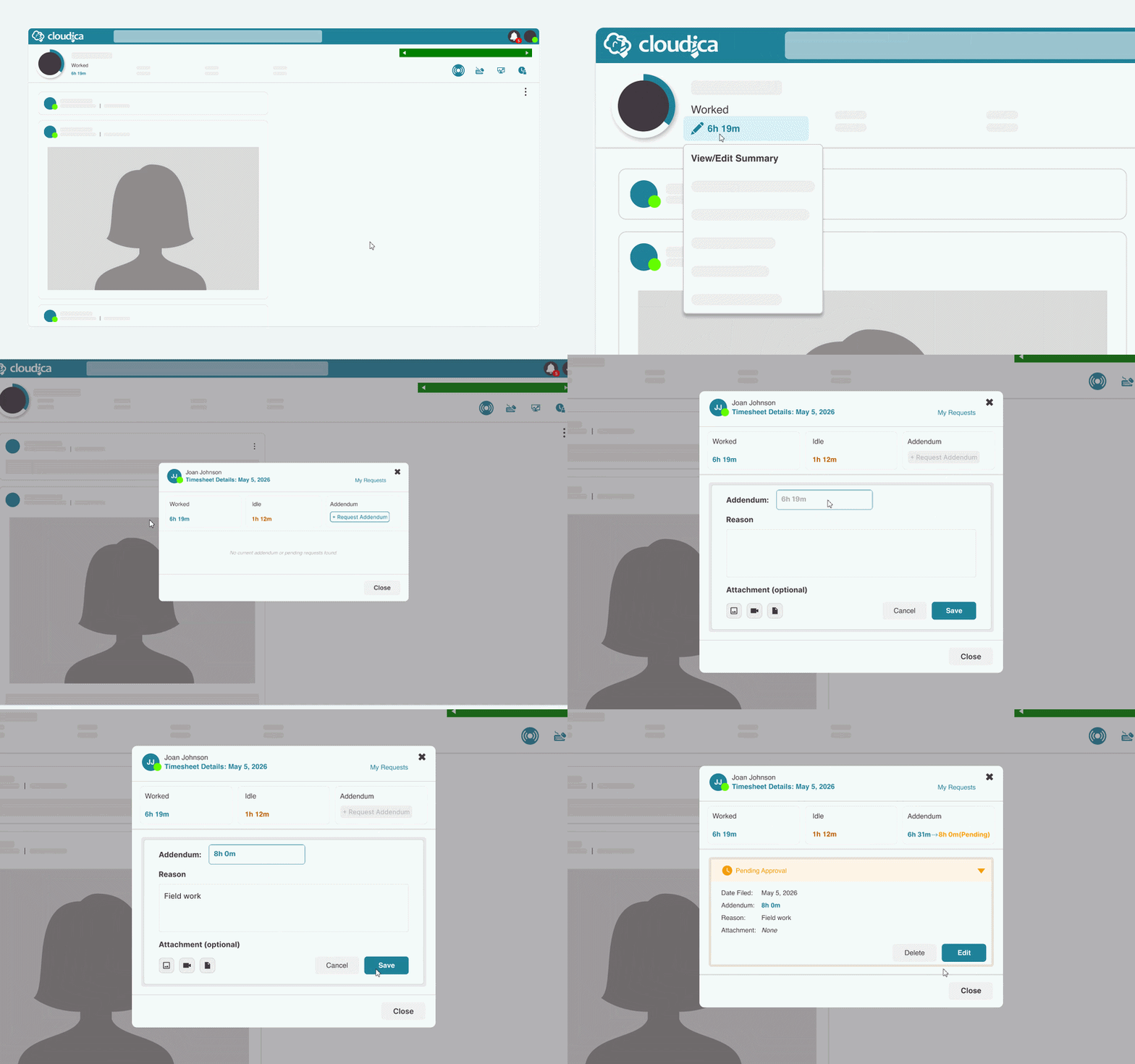
- Time Format: Ensure you use the correct format when entering hours (e.g., 8h 20m).
- Submission Timing: Requests should be submitted at the end of your shift. Once approved, your hours will stop updating automatically for that day unless a new request is approved.
- Notifications: You will receive a dashboard notification once your request has been approved or declined.
- From the User Menu: Click the User Menu and select My Addendums to see a full history.
- From the Timesheet Menu: Click Worked Hours > View/Edit Summary > My Requests.
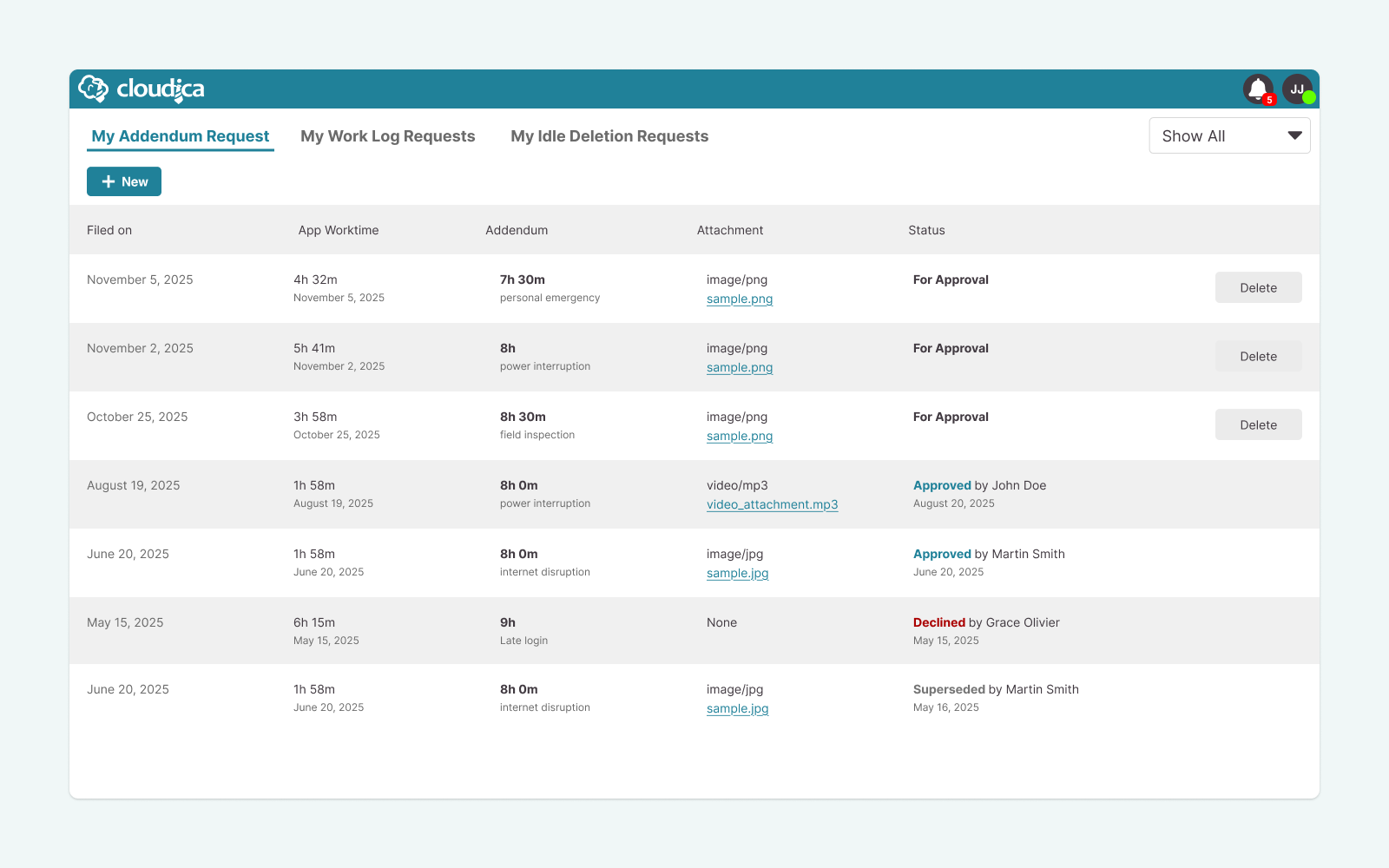
- View Details: Click any row in the table to open a pop-up with the full details of that specific request.
- Delete: Use the delete button to remove requests that are still in "Pending" status.
- Filter: Use the filter button on the right to sort requests by status.
- For Approval Pending review by a Manager or Account Owner.
- Approved Request accepted; Total Worked Hours updated.
- Superseded Request has been replaced by a more recent addendum.
- Declined Request rejected.
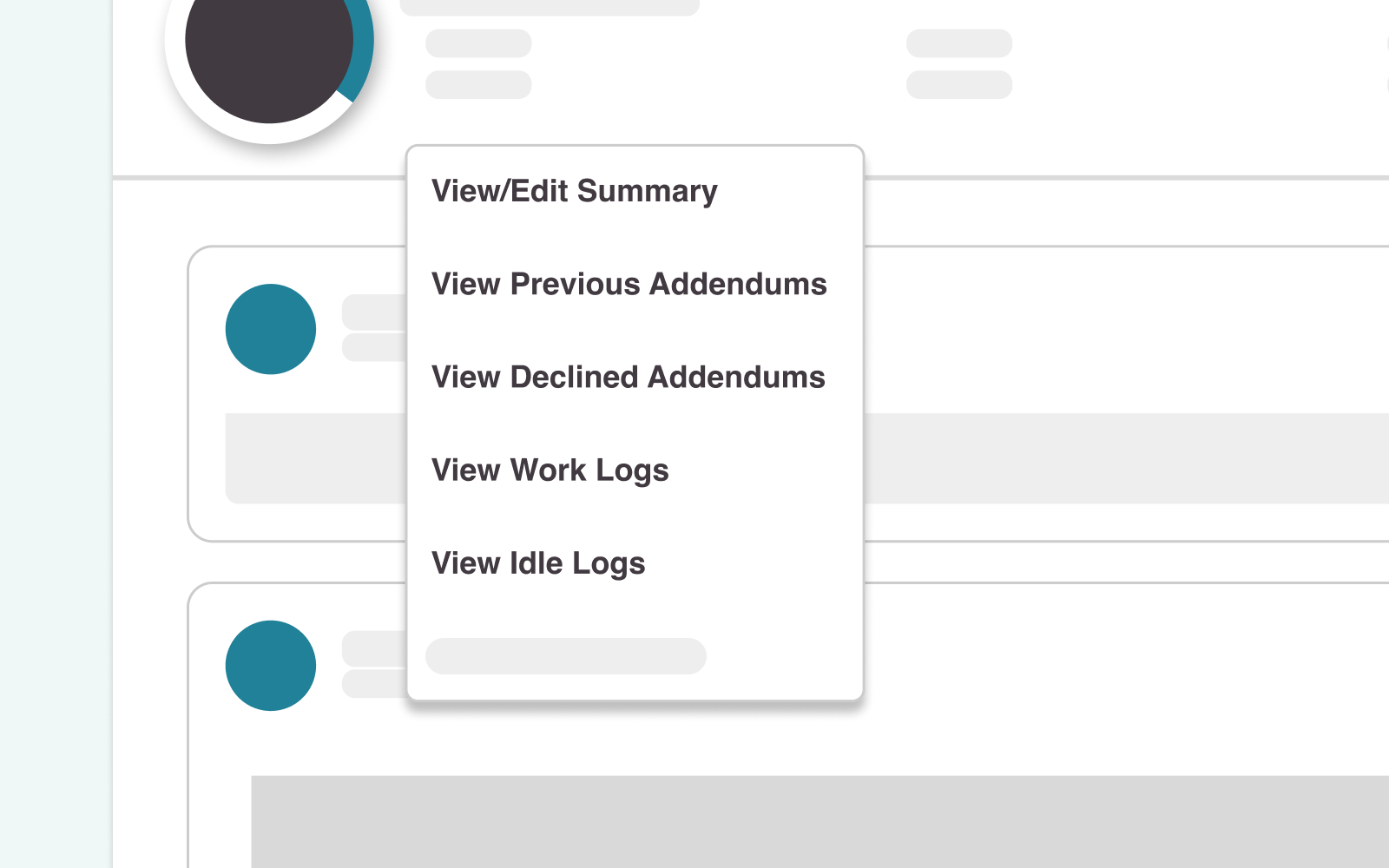
- View/Edit Summary: Your main workspace to see daily Worked Time vs. Idle Time. From here, you can add, edit, or cancel pending requests.
- View Previous Addendums: Opens a pop-up listing superseded addendums for that date. (Disabled if only one approved addendum exists).
- View Declined Addendums: Displays rejected requests for that date. (Disabled if no declined addendums exist).
- View Work Logs: Displays your specific "Time In" and "Time Out" stamps.
- View Idle Logs: Displays recorded idle periods and allows you to request the deletion of idle time.
- Accuracy: Ensures payroll reflects your actual hours worked during disruptions.
- Transparency: Every request includes a reason and a digital paper trail.
- Accountability: Provides a formal review process between users and managers.
- Documentation: Allows for the upload of PDFs or photos to verify unavoidable interruptions.