How to Delete Idle Logs
The Cloudica™ Desktop App automatically records idle time whenever computer activity (keystrokes or mouse movements) is not detected. As a Manager, you can delete these logs to ensure a user’s productivity data accurately reflects periods when they were working offline or performing tasks away from their desk.
How to Delete an Idle Log Entry
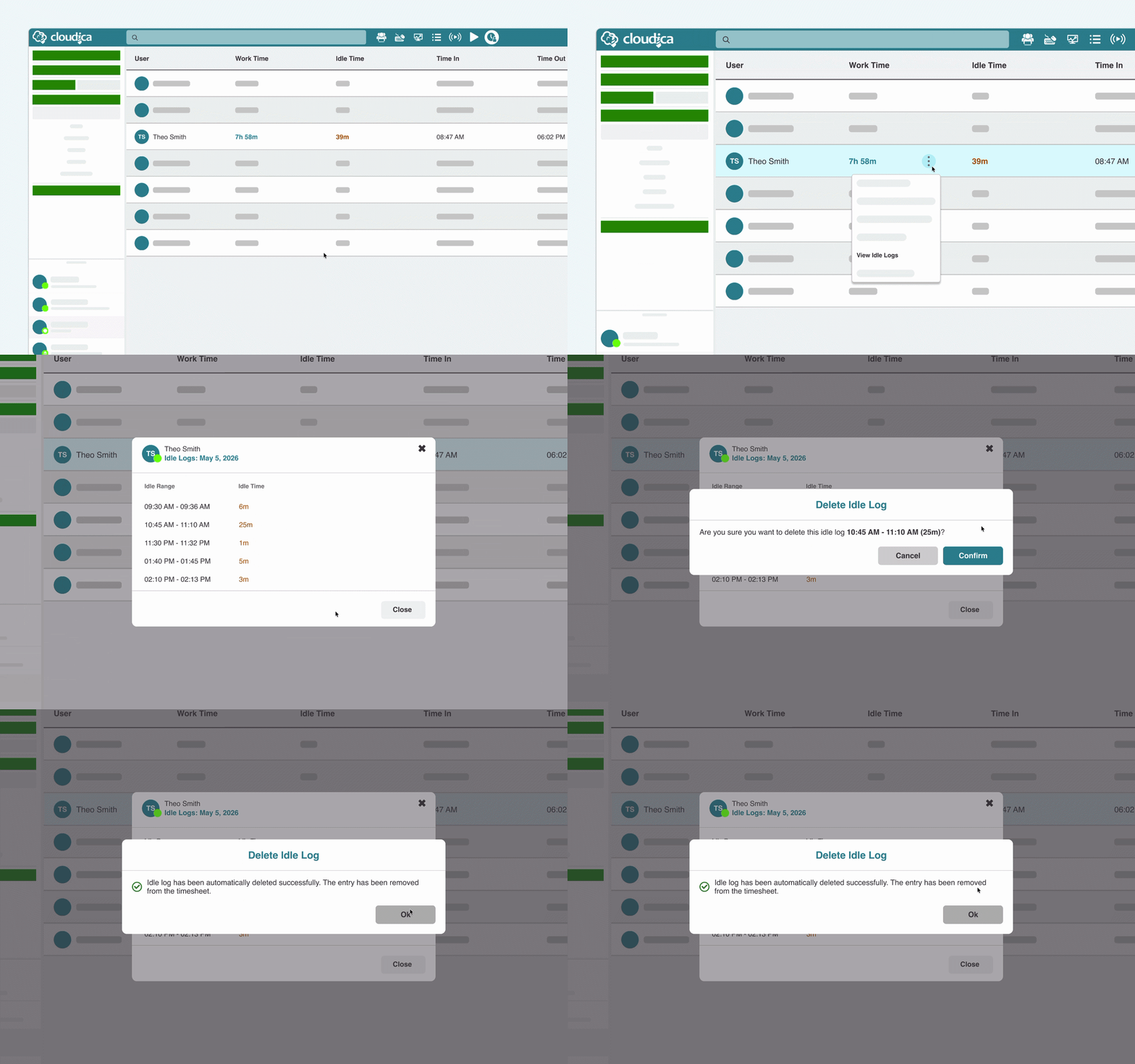
- Click the Timesheet button in the top header.
- Find the employee in the table. (Use the Date Picker on the left panel if managing logs for a past date).
- Hover over the user’s Work Time cell, click the Kebab Menu (three dots), and select View Idle Logs.
- Hover over the specific idle entry you wish to remove and click the Trash Bin icon.
- Click the Confirm button in the pop-up.
 Use the User Search bar or the Team Filter to quickly locate specific employees or groups.
Understanding the Activity Check Logic
When you initiate a deletion, the system performs an automatic Activity Check based on any micro-interactions (e.g., app switching or keystrokes) recorded during that idle window:
Use the User Search bar or the Team Filter to quickly locate specific employees or groups.
Understanding the Activity Check Logic
When you initiate a deletion, the system performs an automatic Activity Check based on any micro-interactions (e.g., app switching or keystrokes) recorded during that idle window:
- Automatic Approval: If the system detects more than one computer activity during the idle period, the deletion is approved automatically without further action.
- Manual Confirmation: If zero or only one activity was recorded, the system requires you to manually click the Confirm button to verify that the deletion is intentional.
Once the deletion is approved or confirmed, the system automatically subtracts that time from the user’s Total Idle Time for that day.
Reviewing History & Managing Requests
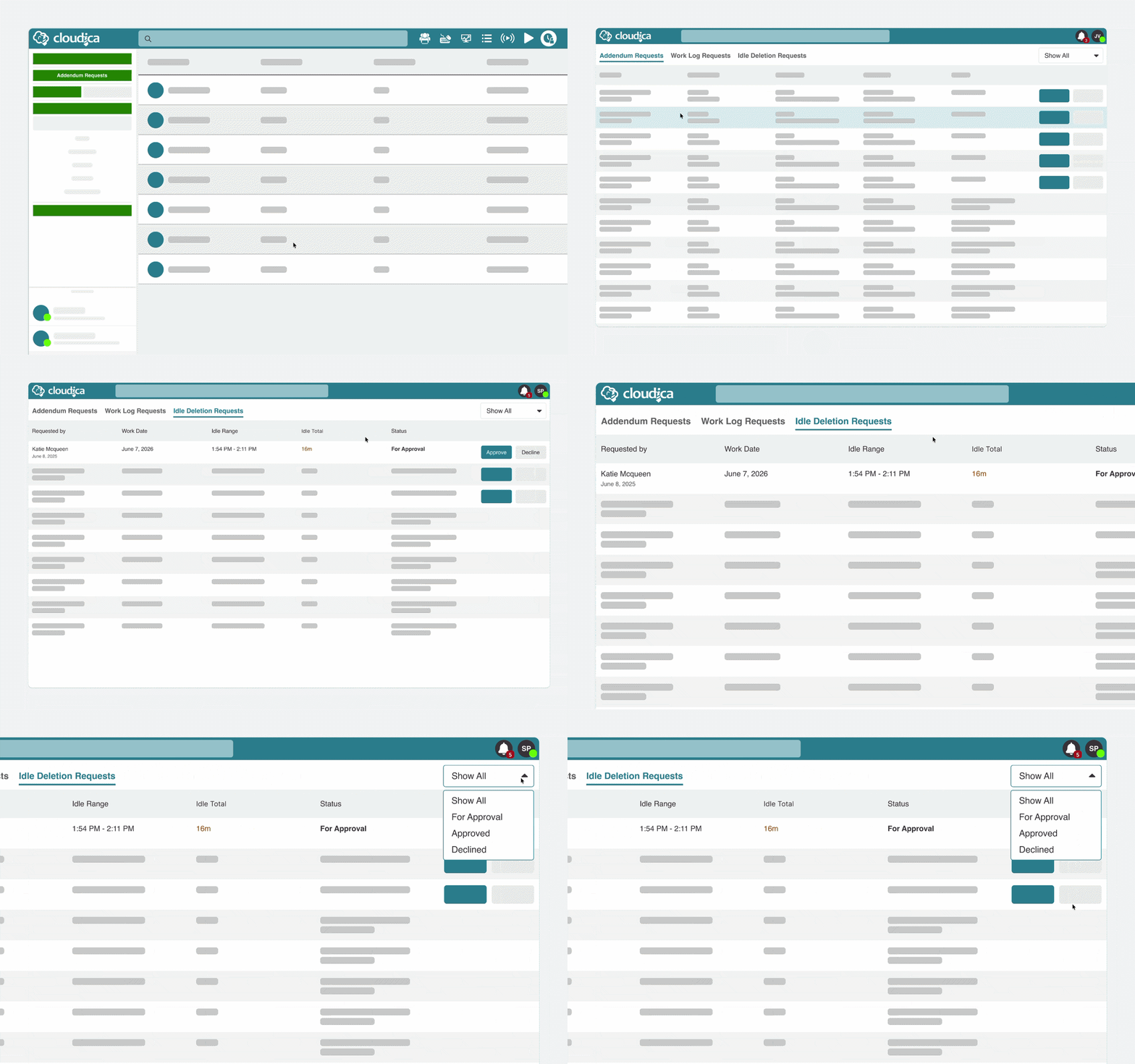
To audit these changes or manage requests submitted by your team, navigate to the Addendum Requests button on the left panel of the Timesheet page. This hub allows you to:
- Audit History: View the full history of Addendums, Work Logs, and Idle Deletions for your team.
- Take Action: Directly Approve or Decline pending idle deletion requests submitted by your managed users.
- Filter Data: Use the tabs to quickly toggle between different request types.
 Related Guides: How to Add Work Logs and How to Approve or Decline Requests
When to Use Idle Log Deletion
Managers can utilize this feature in the following scenarios:
Related Guides: How to Add Work Logs and How to Approve or Decline Requests
When to Use Idle Log Deletion
Managers can utilize this feature in the following scenarios:
- Offline Meetings: The user was in a physical meeting or on a call away from their computer.
- Manual Tasks: The user was performing work-related tasks that do not require a mouse or keyboard (e.g., reviewing physical documents).
- Research/Planning: The user was engaged in deep work or planning sessions that resulted in an idle state.
Copyright © 2025 Cloudica LLC