How to Add Work Logs
As a Manager or Owner, you can manually add Work Logs (Time In and Time Out) for the users you manage. This is typically used to document activity when a user arrives late or continues working offline due to technical issues like an app crash or loss of internet connection.
Key Distinctions:
- Reference Only: Work Logs provide documentation of activity but do not automatically affect addendum computations or final timesheet totals.
- Automatic Approval: When a Manager or Owner adds a Work Log, it is automatically approved.
- Prerequisite: An approved Addendum for the specific date is required before any Work Log can be added.
Read about how to add an Addendum.
How to Add a New Work Log
- Click the Timesheet button in the top header.
- Find the employee in the table. (Use the Date Picker on the left if you are recording logs for a past date).
- Hover over the user’s Work Time cell, click the Kebab Menu (three dots), and select View Work Logs.
- In the pop-up, click the + Add Log button.
- Enter the Time In and Time Out.
- Click Submit.
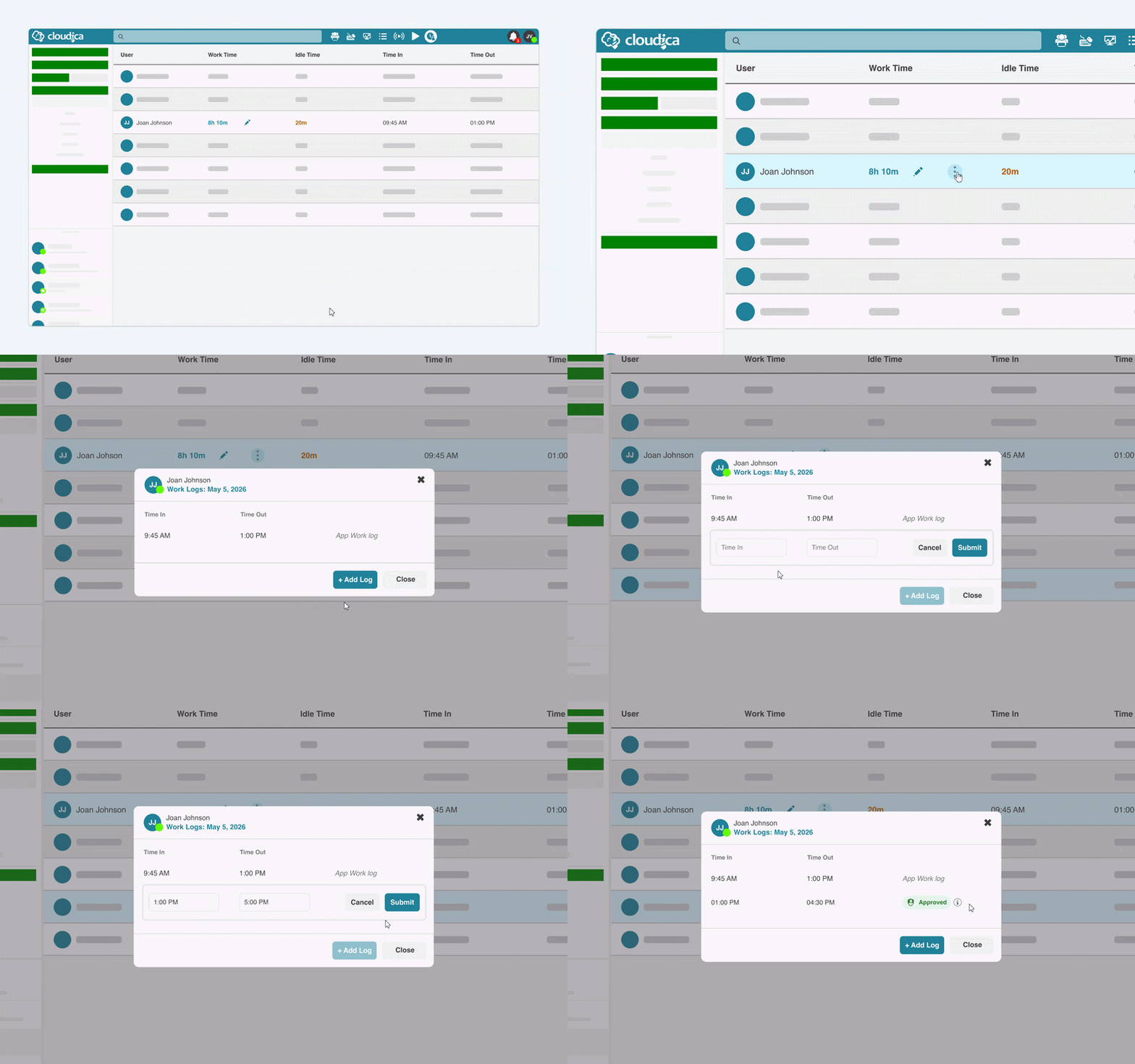 Use the User Search bar or the Team Filter to quickly locate specific employees or groups.
Essential Rules & Requirements
To maintain data integrity, the system enforces these strict placement rules:
Use the User Search bar or the Team Filter to quickly locate specific employees or groups.
Essential Rules & Requirements
To maintain data integrity, the system enforces these strict placement rules:
- Active Sessions: If adding a log for the current date, the Add Log button remains disabled until the user signs out of the Cloudica™ desktop app.
- No Overlaps: Work Logs cannot overlap with recorded app Time In/Out or other existing logs.
- Specific Alignment: Logs must be "snapped" to the app session:
- Late Arrivals: Must end exactly at the app "Time In."
- Offline/Crash Work: Must start exactly at the app "Time Out."
Adding Work Logs for Absent Users
If a user did not log in to the app, they appear as Absent. To record their offline work:
- Use the Date Picker on the left panel of the Timesheet.
- Click the Absent button on the left panel to add them to the list.
- Refine (Optional): Click the Worked button to hide active users, leaving only the Absent list visible.
- Required Step: You must add an Addendum for the user first.
- Once the addendum is approved, follow the standard steps above to add the Work Log.
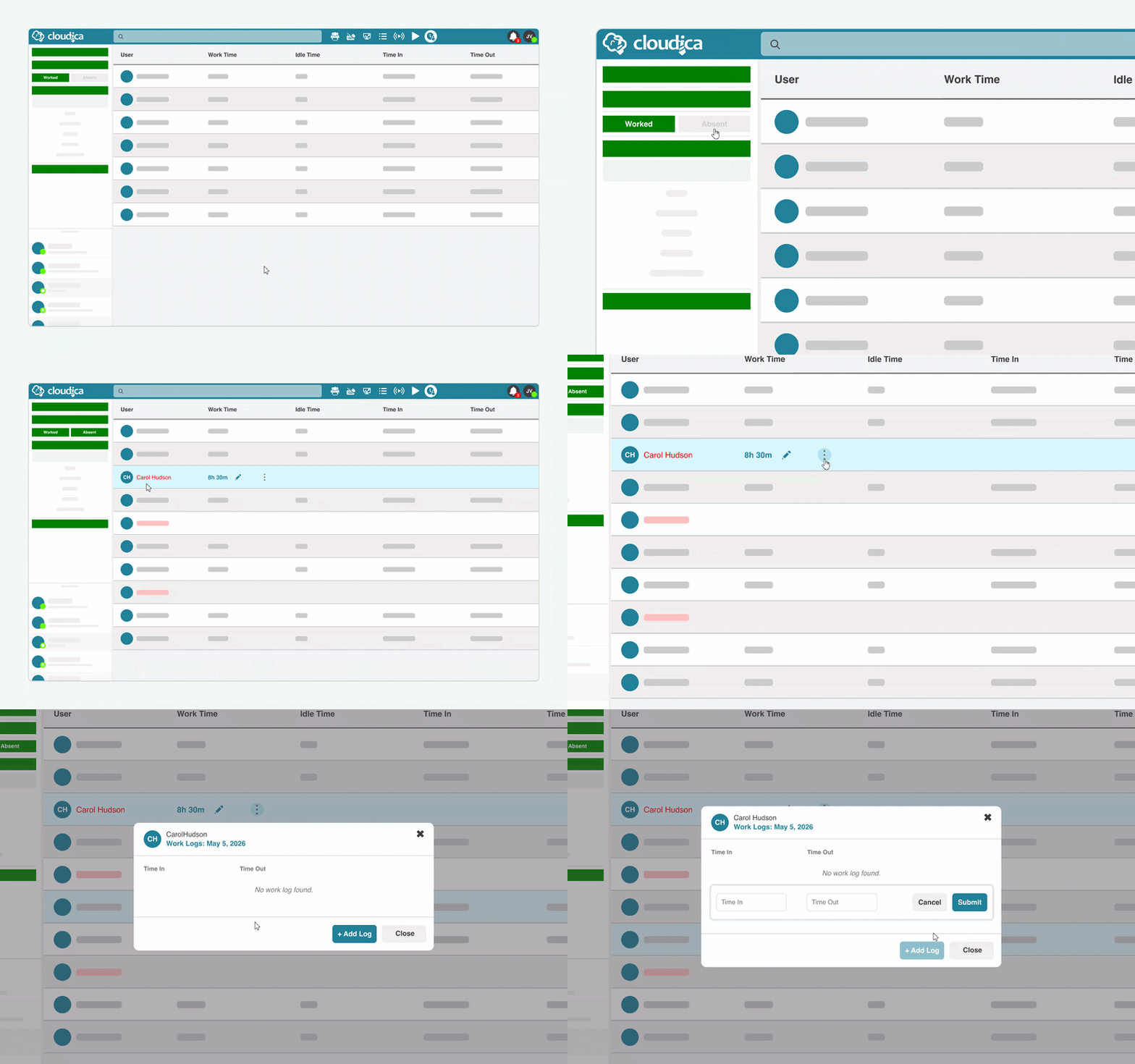 How to Edit or Delete a Work Log
Approved Work Logs can still be managed after submission:
How to Edit or Delete a Work Log
Approved Work Logs can still be managed after submission:
- Navigate to View Work Logs via the user's Kebab Menu in the Timesheet table.
- In the pop-up: Hover over the submitted Work Log and click the Kebab Menu (three dots) that appears next to that specific entry.
- Select Edit to update the times or Delete to remove the log entirely.
- Hierarchy Rule: You can amend logs added by managers above you in the hierarchy, but you cannot delete them.
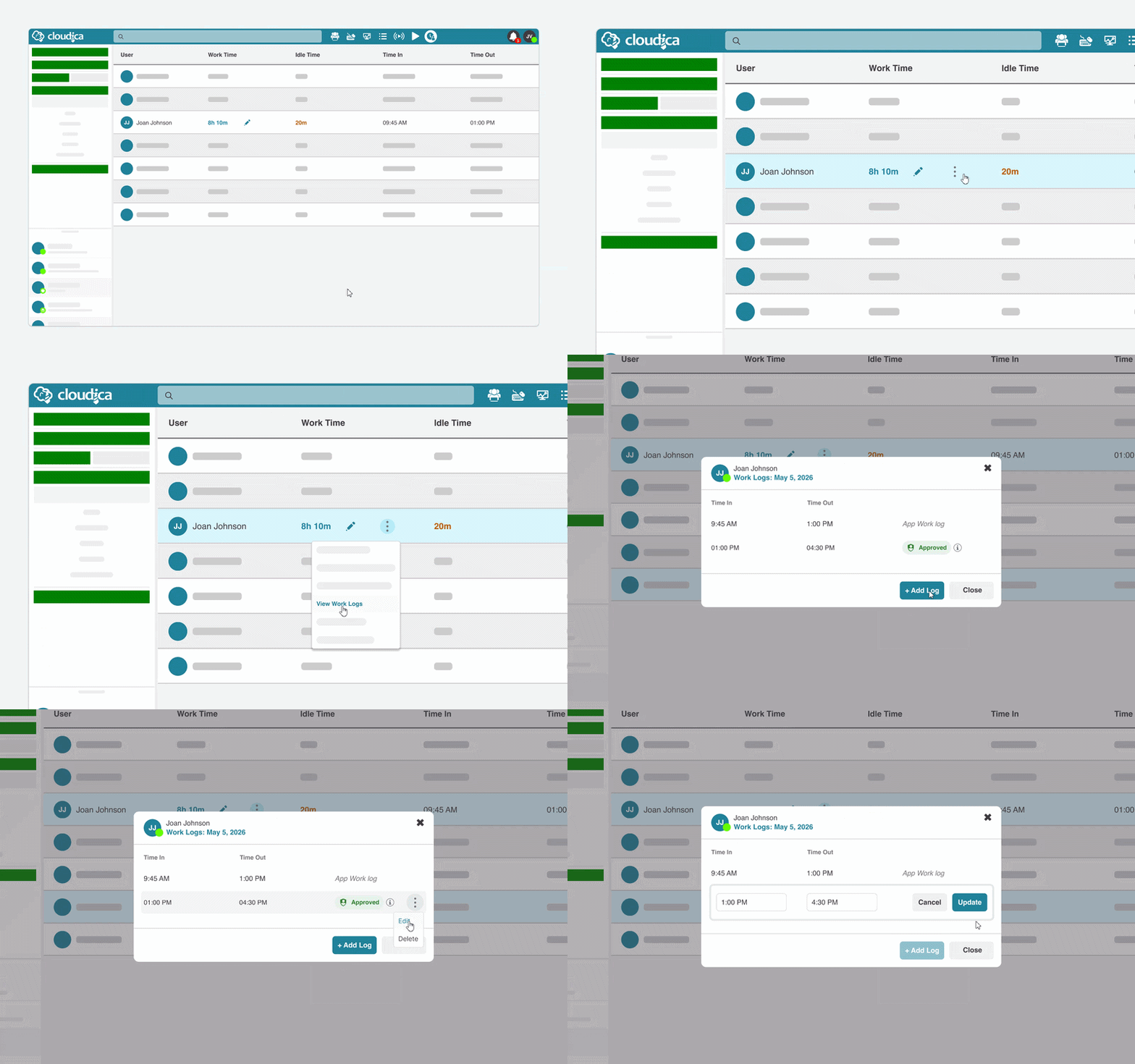 Hover over the Info Icon on an updated log to see a tooltip detailing who created and edited the log and when.
Reviewing History & Managing Requests
Navigate to the Addendum Requests button on the left panel of the Timesheet page. This hub allows you to:
Hover over the Info Icon on an updated log to see a tooltip detailing who created and edited the log and when.
Reviewing History & Managing Requests
Navigate to the Addendum Requests button on the left panel of the Timesheet page. This hub allows you to:
- Audit History: View the full history of Addendums, Work Logs, and Idle Deletions.
- Take Action: Approve or Decline pending requests from your team, or Edit/Delete approved Work Logs.
- Filter: Use the tabs to toggle between different request types.
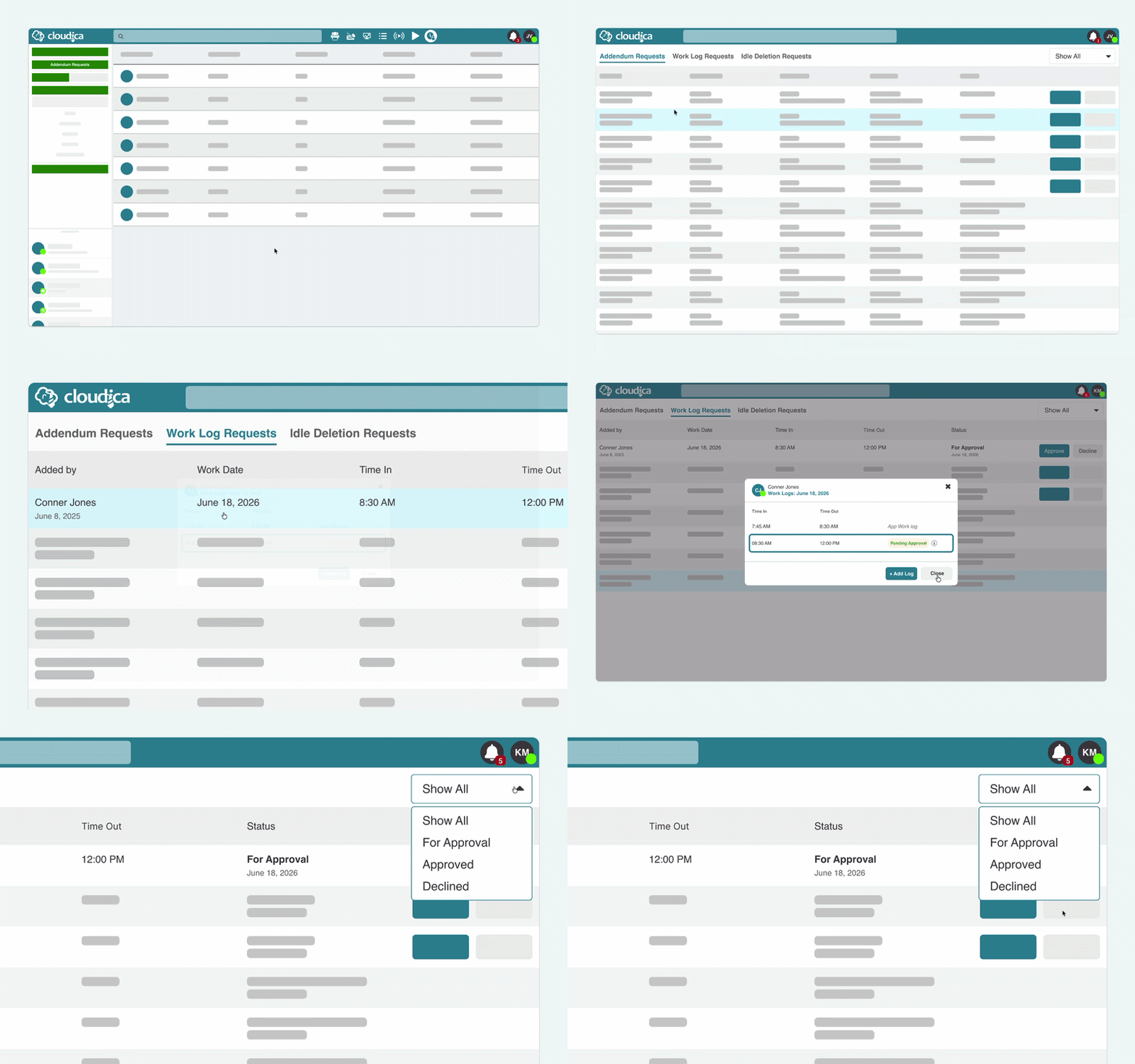 Related Guides: How to Add an Addendum and How to Approve or Decline Requests
When to Use the Work Log Feature
Related Guides: How to Add an Addendum and How to Approve or Decline Requests
When to Use the Work Log Feature
- Late Starts: Documenting work performed before the user could access the app.
- App Crashes: Recording work continued after a technical failure interrupted the app.
- Manual Record-Keeping: Providing a transparent "paper trail" of offline activity for audit purposes.
Copyright © 2025 Cloudica LLC