2FA Code Not Appearing in Dashboard
- The Manager logs into their Cloudica dashboard.
- Click the User Menu and select Manage Users.
- Locate the specific user's data box and click it to open the User Drawer.
- Scroll down to the Other Options section and click the Impersonate button.

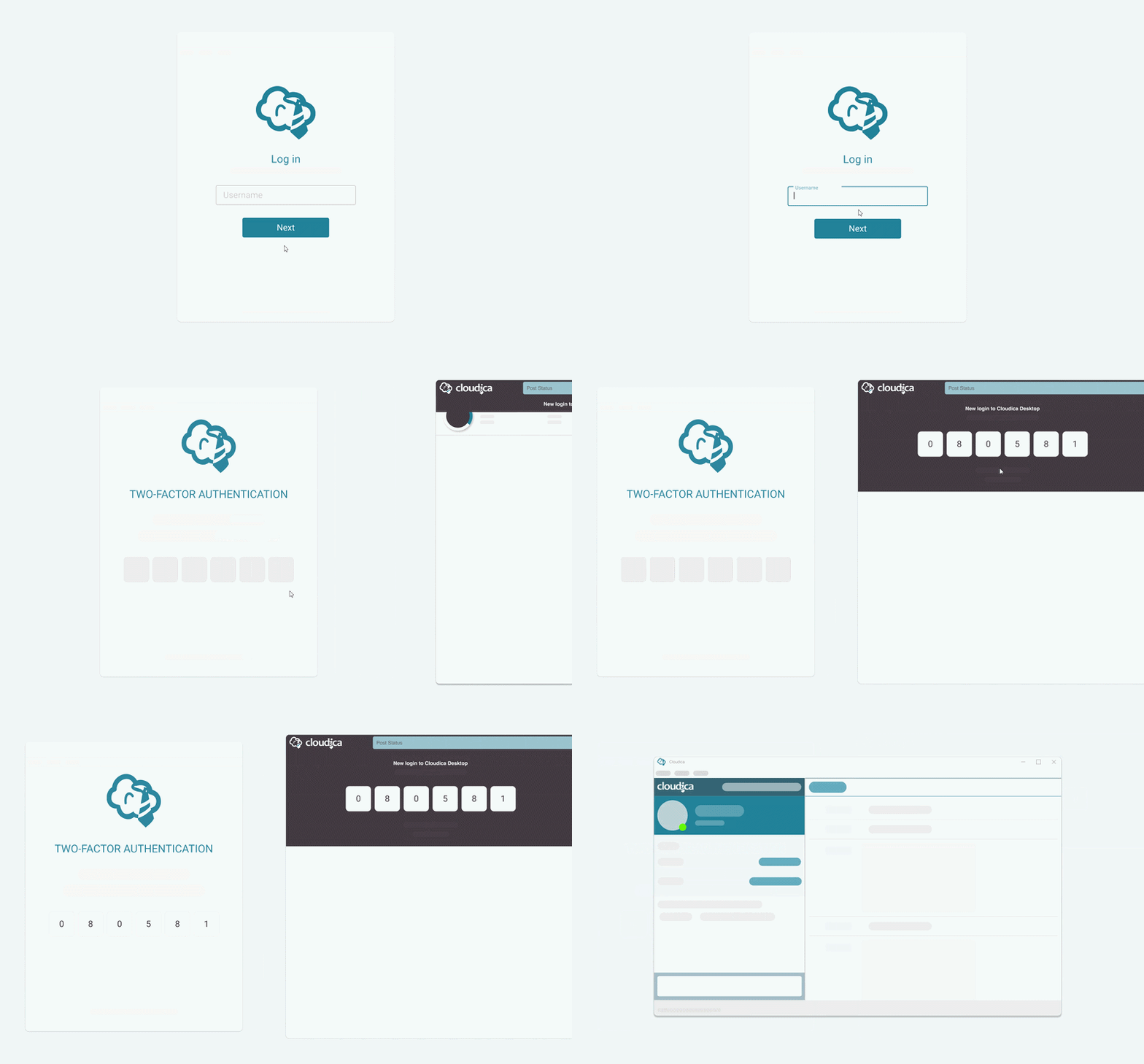
- Trigger the Code (User): The User should attempt to log in via the Cloudica Desktop App. This will trigger the 2FA request.
- Approve Access (Manager): On the "Impersonated" dashboard, a new banner will appear just below the header. The Manager must click this banner and select Allow this device.
- Share the Code: The 2FA code will now appear on the Manager's screen. The Manager can then provide this code to the User to complete their login.
- Click the User Menu on the Impersonated dashboard.
- Select Logout.
- You will be automatically returned to the primary Manager Dashboard.
